
How to Search for Auction Properties - Basic Search
This guide provides clear instructions on how to use the property search functionality on the auction platform.
By following the steps below, users will be able to refine their search by location, distance, property type, and price range, ensuring accurate and relevant results.
1. Selecting a Location
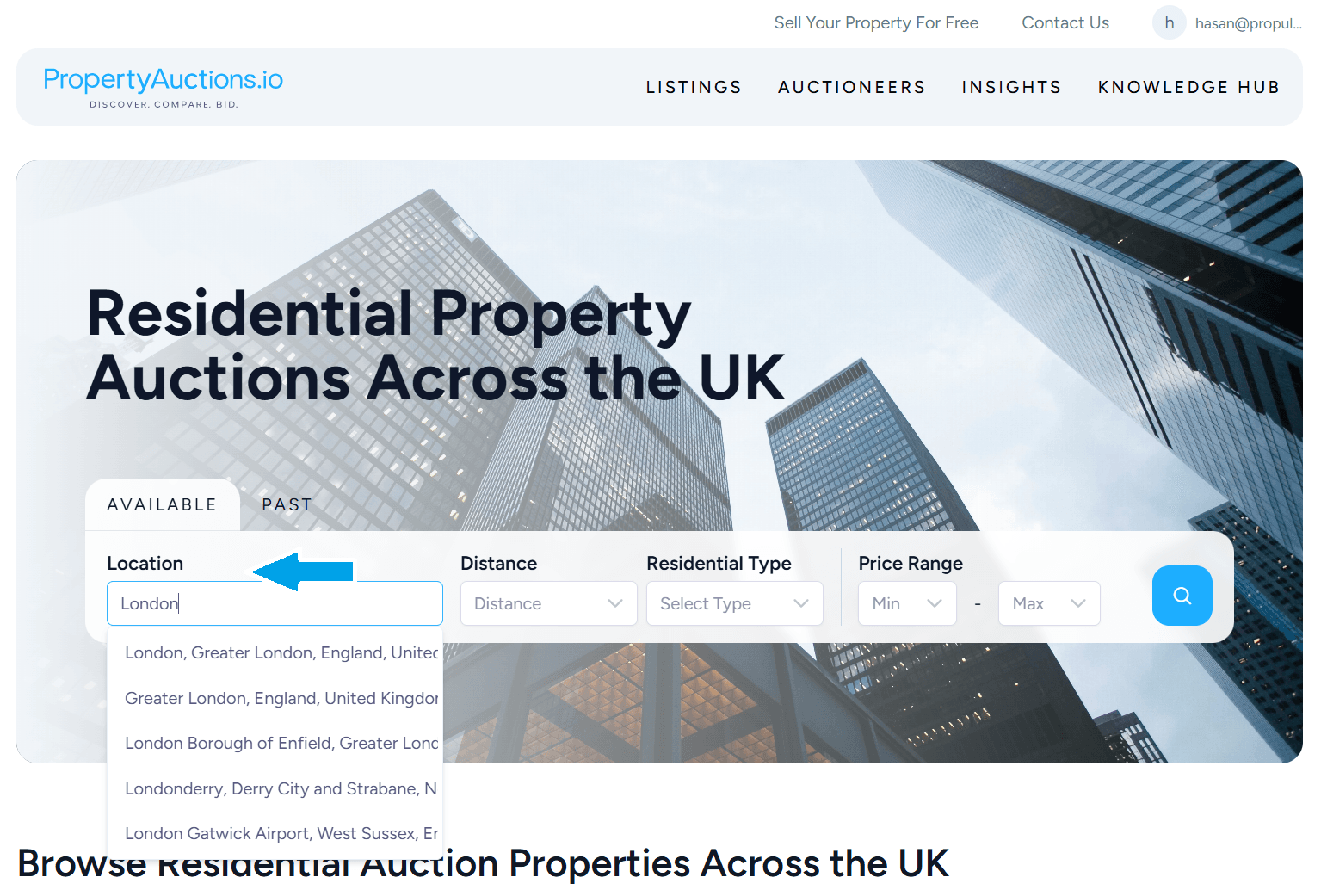
Navigate to the Search section on the homepage or dedicated property search page.
- Click the Location field.
- Enter the desired town, city, or postcode.
- A dropdown list will appear displaying matching locations.
- Select the appropriate location from the list to confirm your choice.
The selected location will act as the central point for your property search.
2. Setting the distance
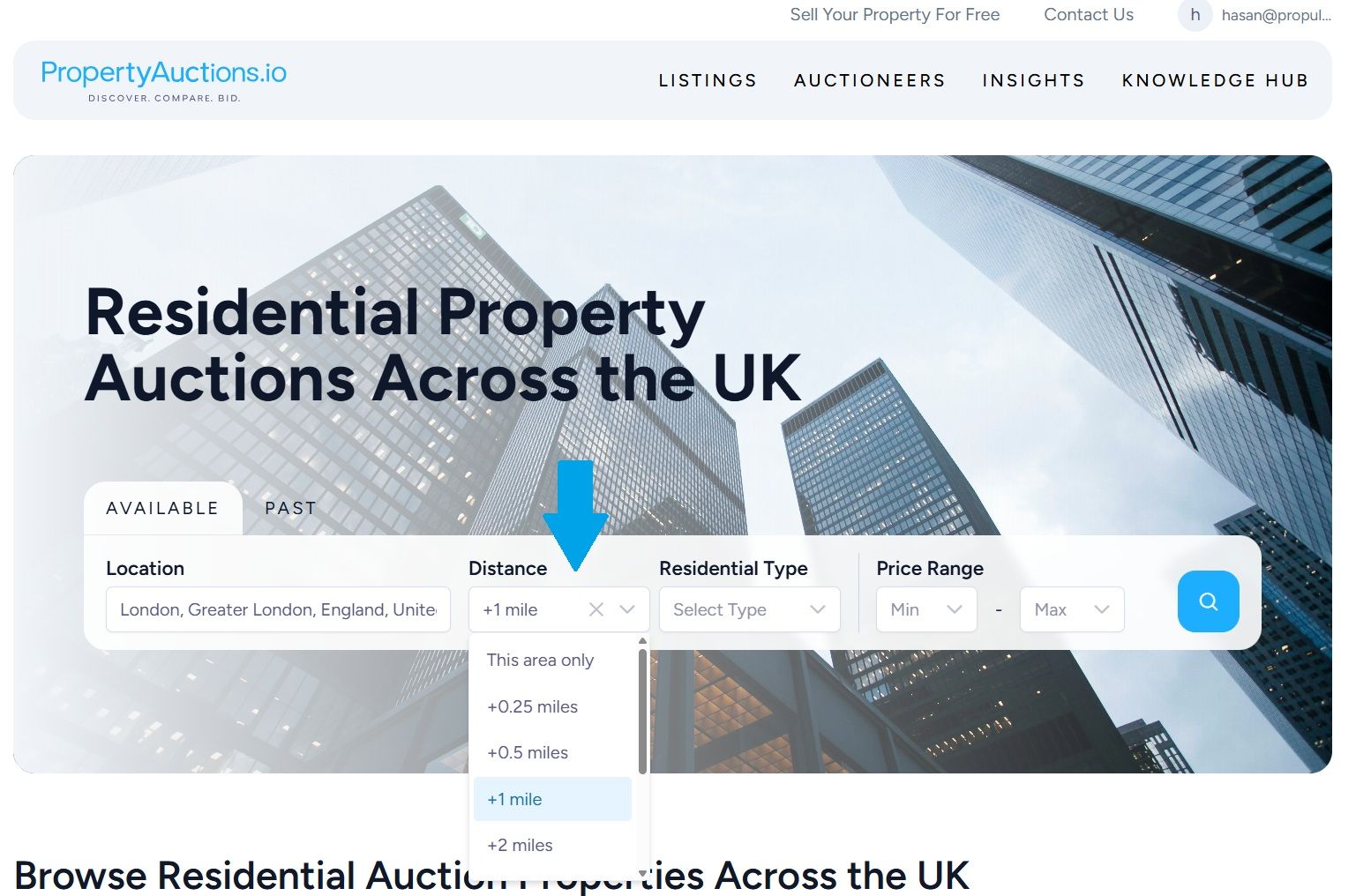
- Locate the Distance filter positioned near the location field.
- Click the dropdown menu to view the available search radius options (for example: 1 mile, 5 miles, 10 miles, 25 miles).
- Select the preferred distance range.
Only properties within the chosen radius of your selected location will be displayed.
3. Choosing the Residential Property Type
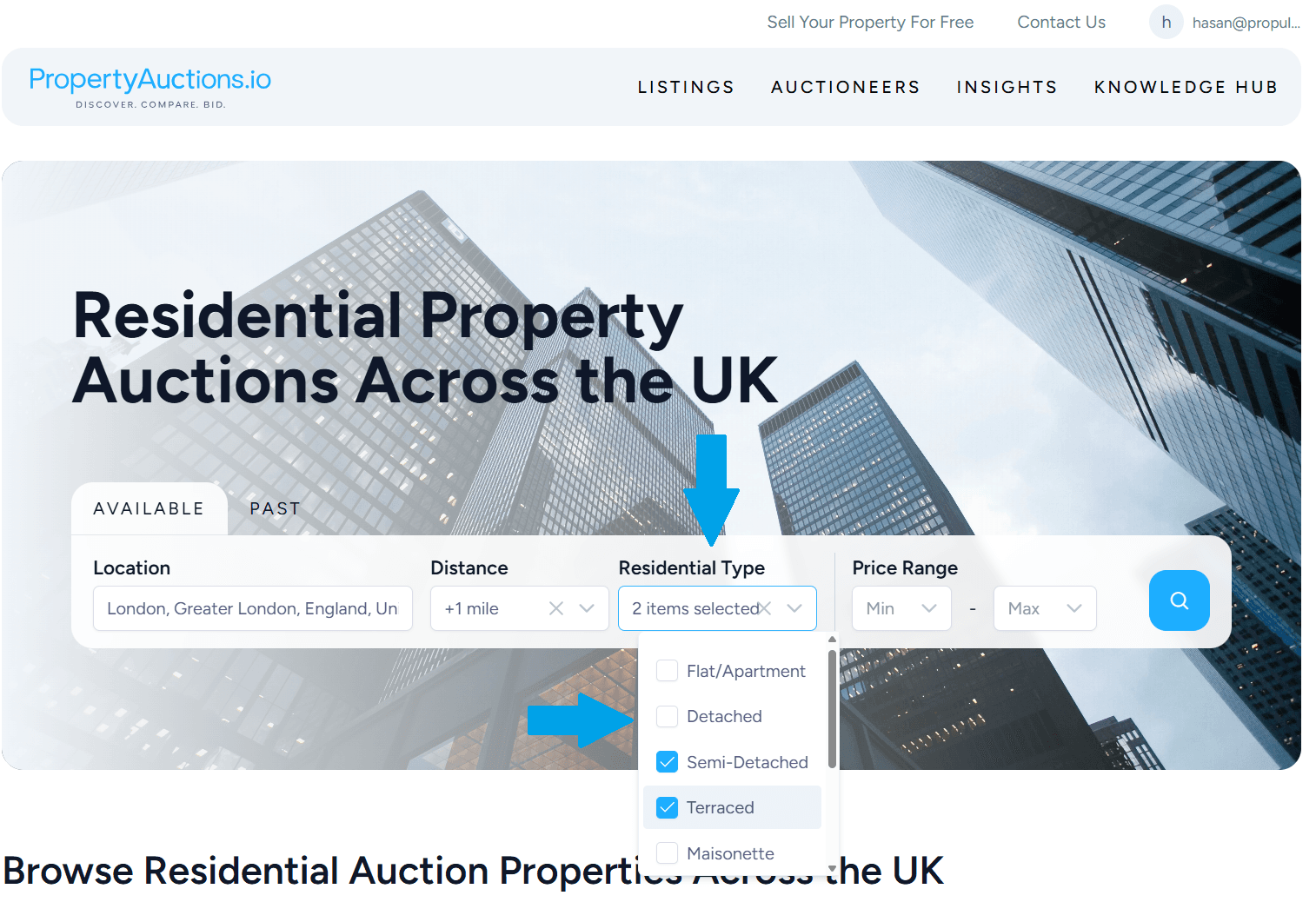
Find the Property Type filter.
- Click to open the list of available categories.
- Select the property type(s) you wish to include in your search.
Common options may include:
- Flats/Apartments
- Detached
- Semi-Detached
- Terraced
- Bungalows
- Studios
- and more
Multiple selections can be made if required.
4. Specifying the Price Range
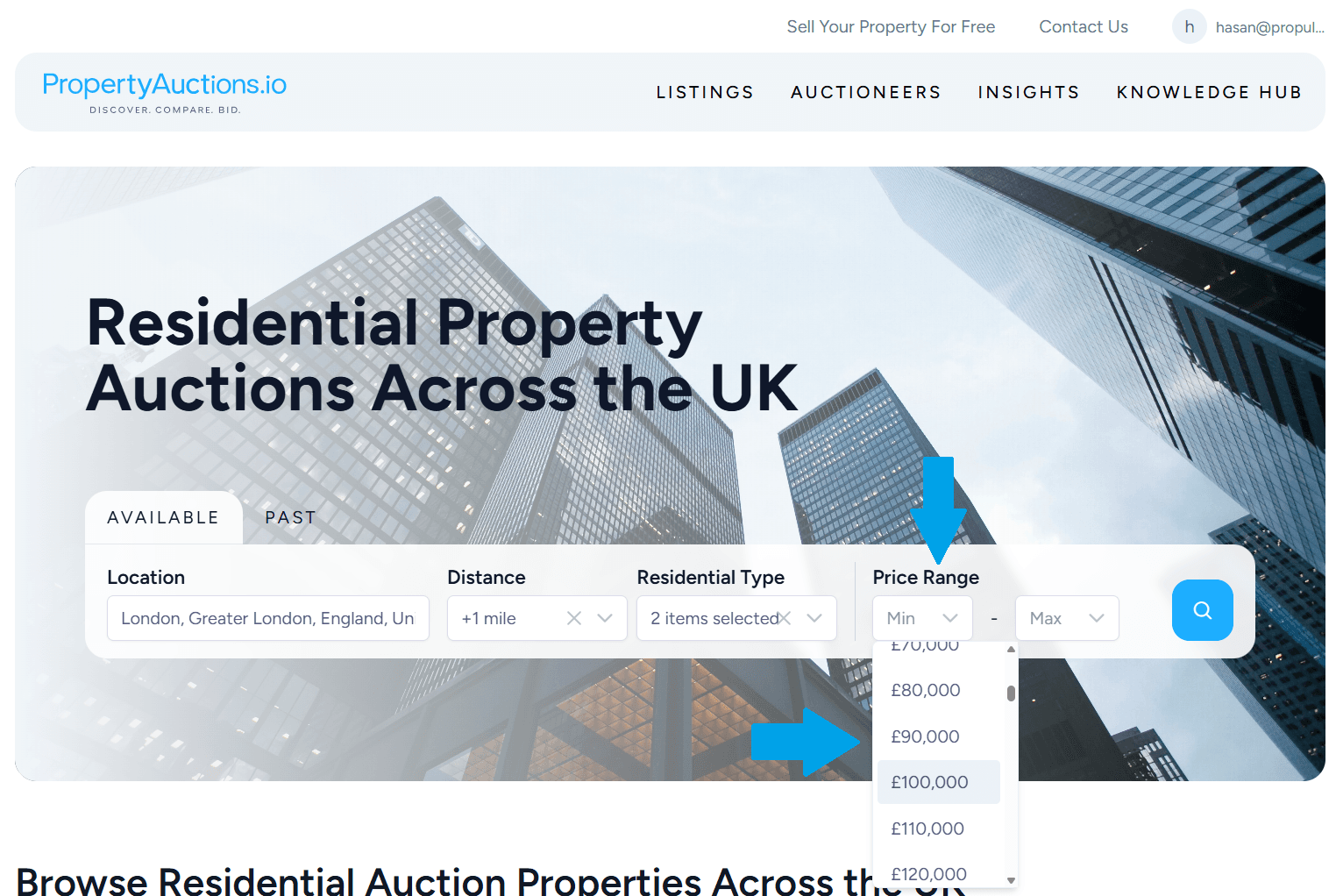
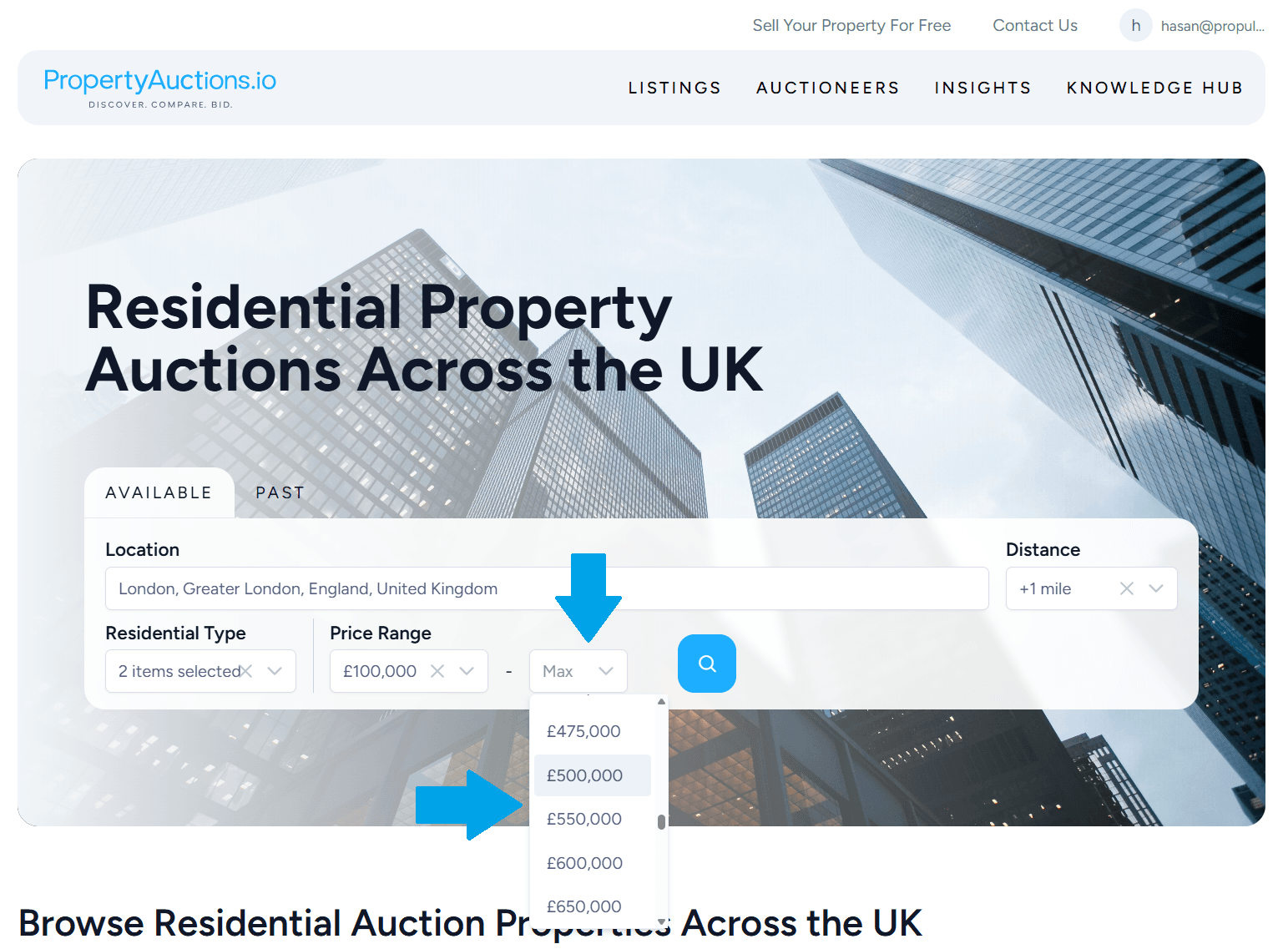
- Click the minimum Price Range filter.
- Enter or set the minimum and maximum price values applicable to your search.
- Search results will automatically adjust to reflect your specified price boundaries.
- Then do the same for the max Price Range
5. Applying the Filters
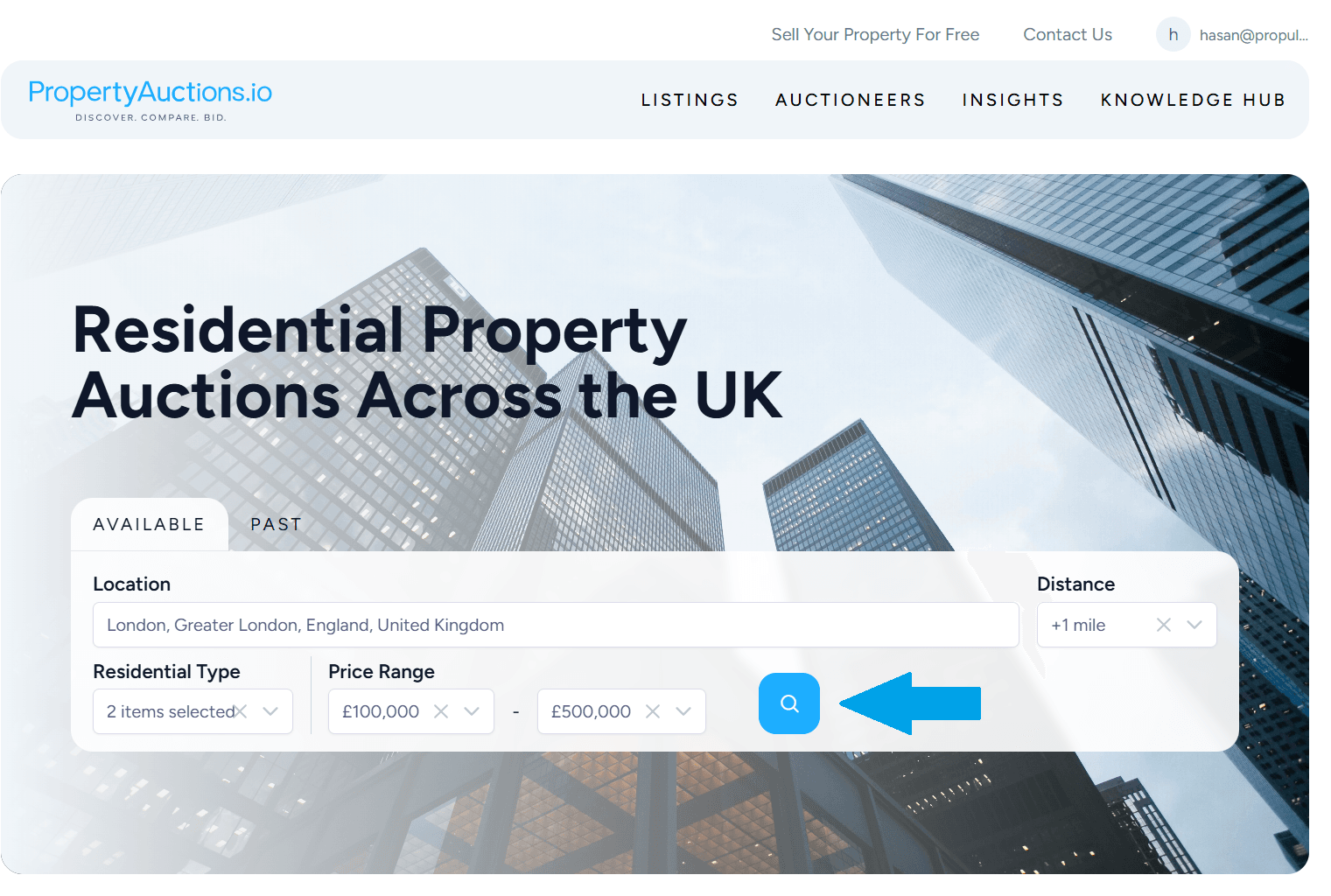
After choosing your preferred filter settings, click the blue search button.
The page will refresh and display the properties that match your criteria.
Filters may be adjusted at any time to refine the results further.