
Advanced Auction Property Search Guide | User Guide
This user guide outlines how to use the Advanced Search functionality to refine property results using a comprehensive set of filters.
These filters allow users to narrow their search based on price, status, property attributes, auctioneers, and more.
1. Opening the Advanced Filters Menu
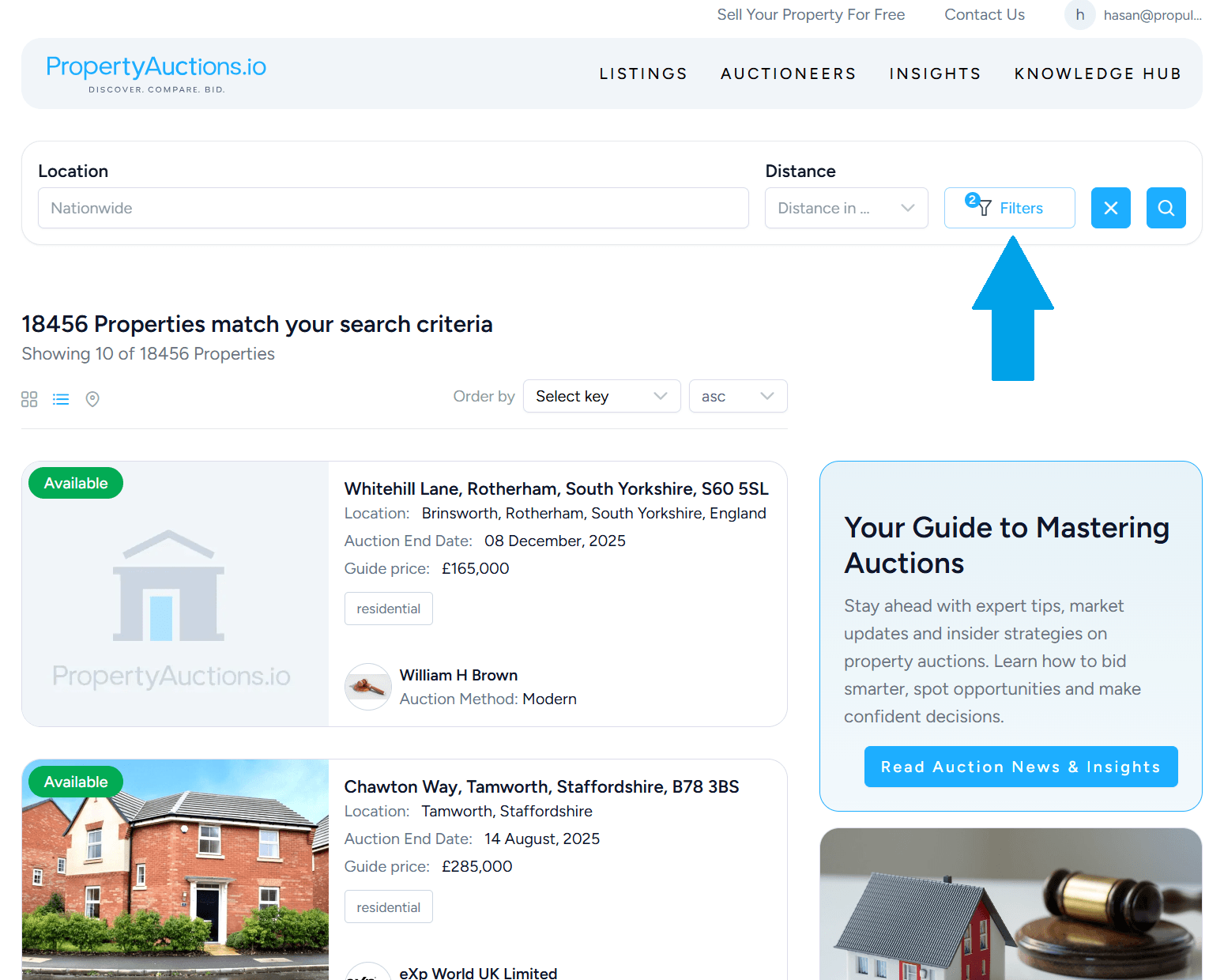
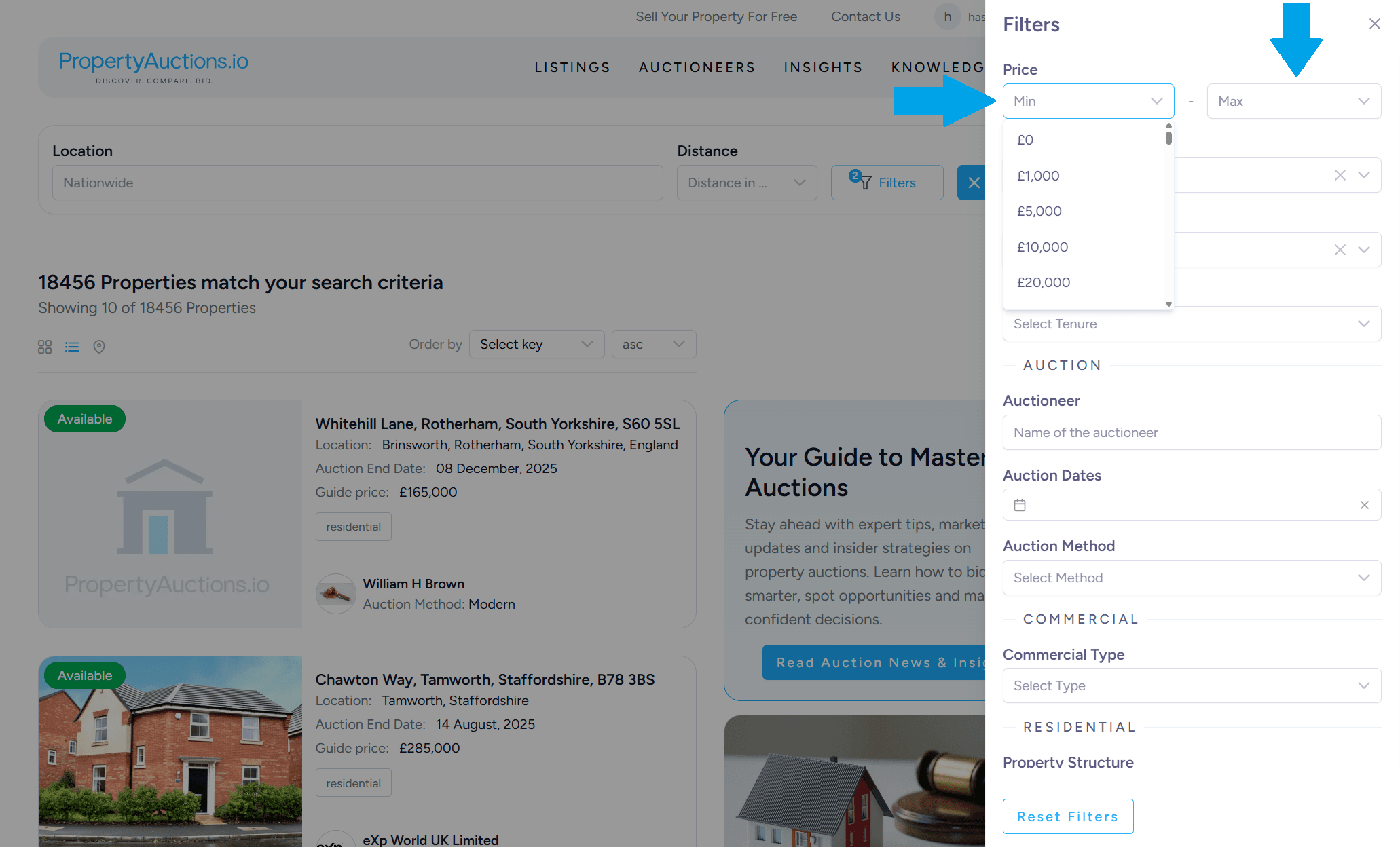
Click the Filters icon and a filter panel will open on the right-hand side of the screen, displaying all available advanced search options.
2. Setting the Price Range
- Locate the Price section within the filter menu.
- Enter or select the minimum and maximum price values.
Property results will be limited to listings within this price range.
3. Selecting the Lot Status
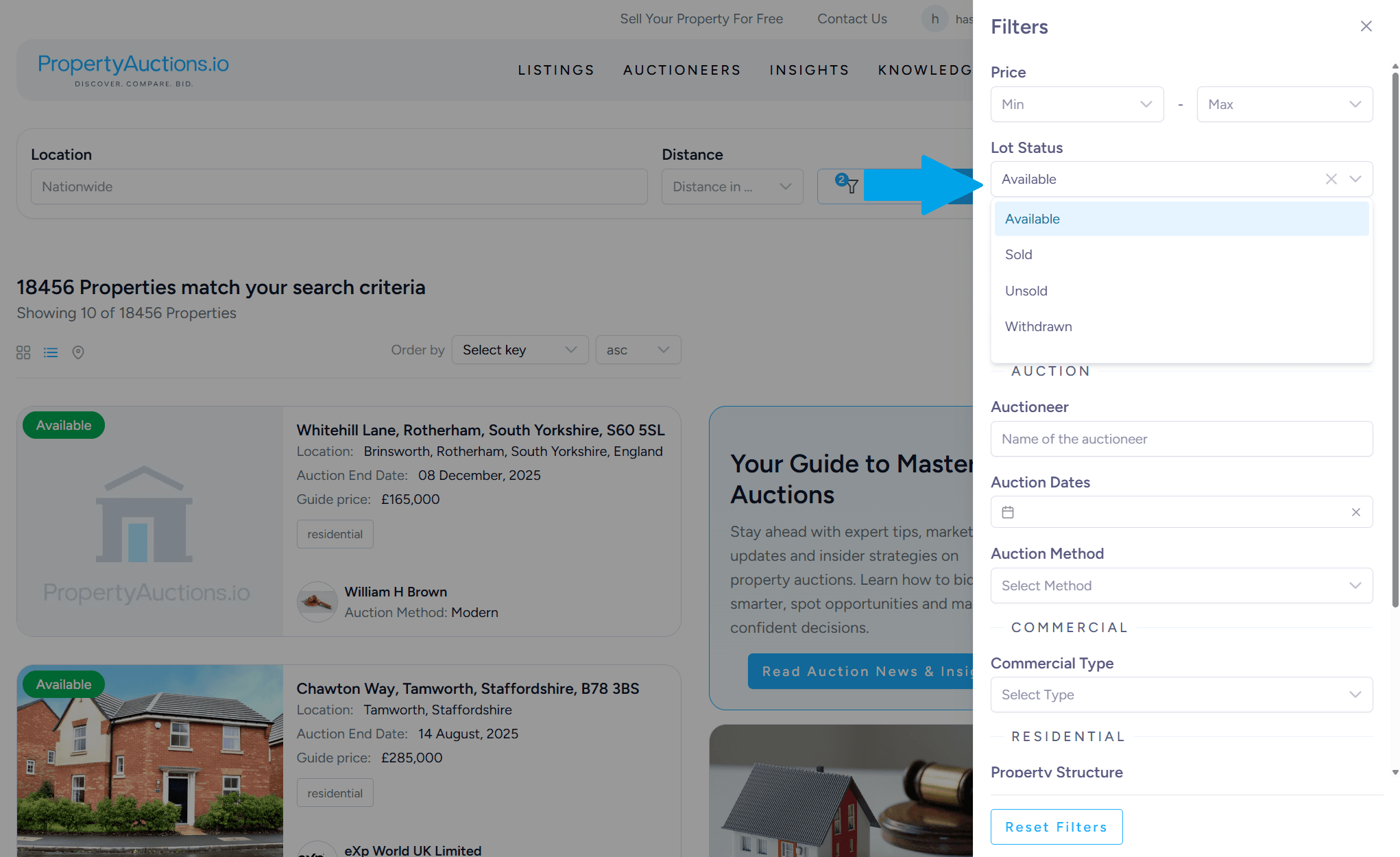
Under the Status filter, choose the type of lot you wish to view.
Available options may include:
- Available
- Sold
- Unsold
- Withdrawn
Multiple statuses may be selected if required.
4. Choosing the Property Type
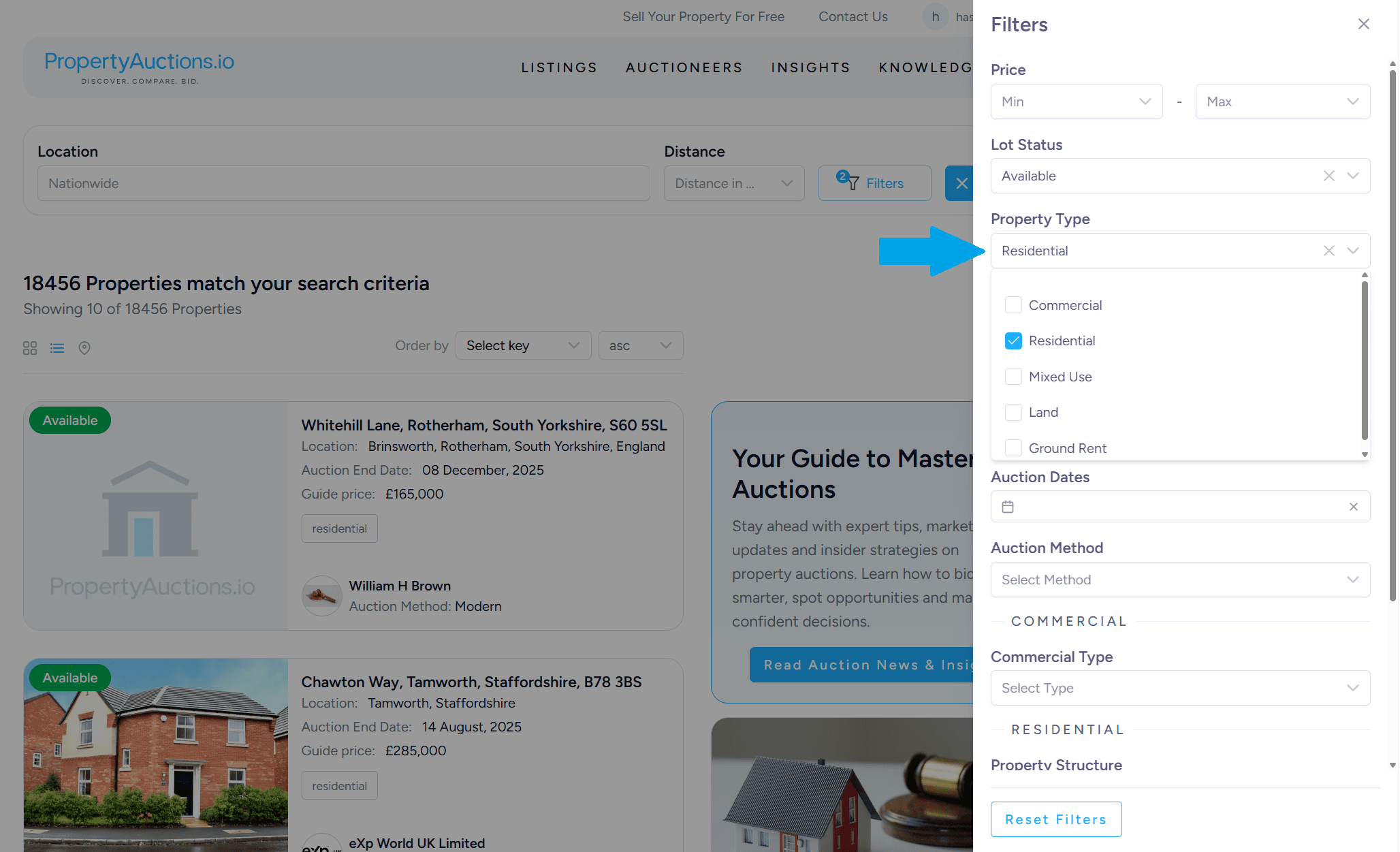
Navigate to the Property Type section.
Select one or more categories such as:
- Commercial
- Residential
- Mixed Use
- Land
The property list will adjust to reflect the selected categories.
5. Selecting the Tenure
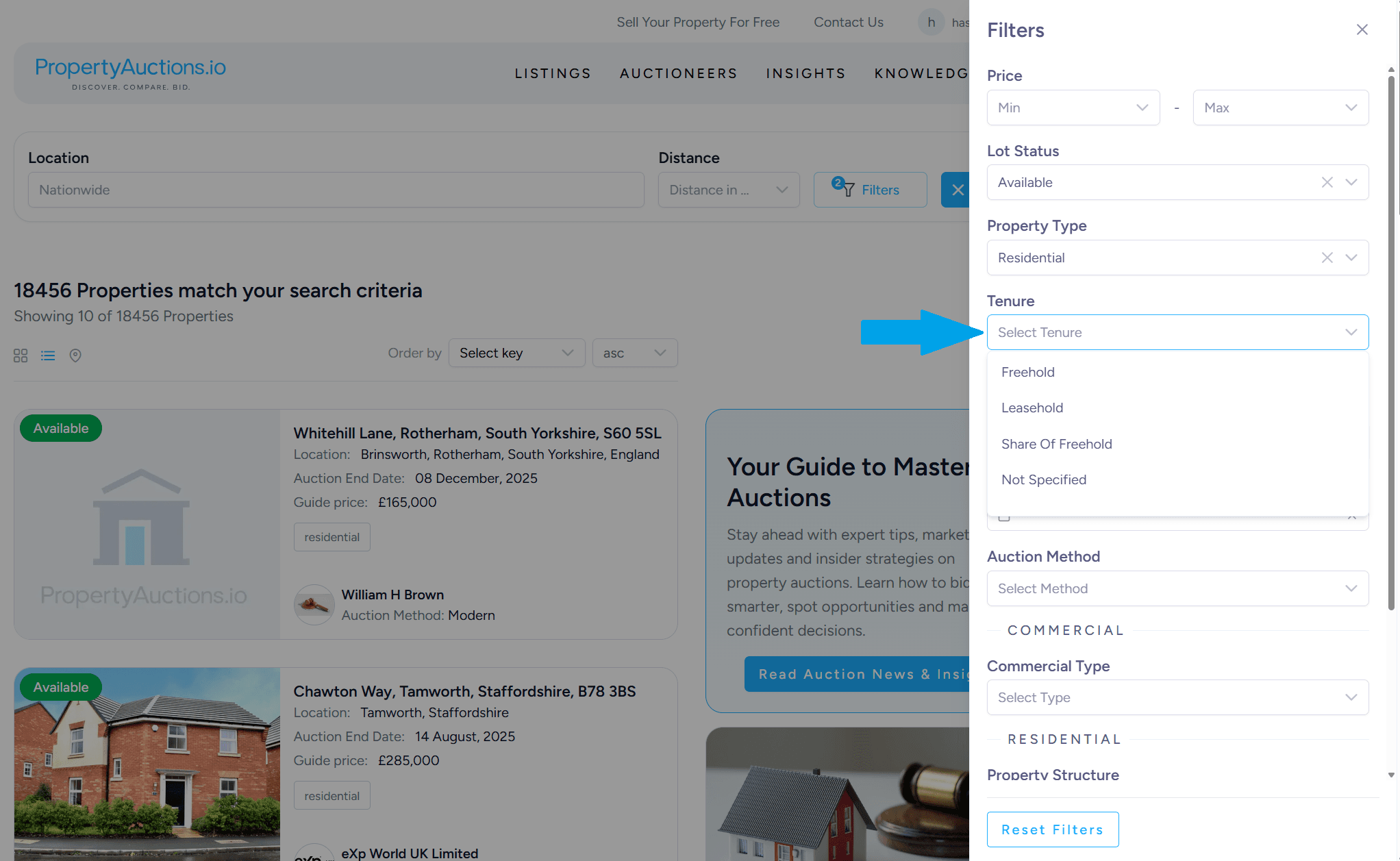
Locate the Tenure filter.
Choose from available tenure options, such as:
- Freehold
- Leasehold
- Share of Freehold
- Other tenure variations
Only properties matching the chosen tenure type(s) will be displayed.
6. Specifying the Auctioneer
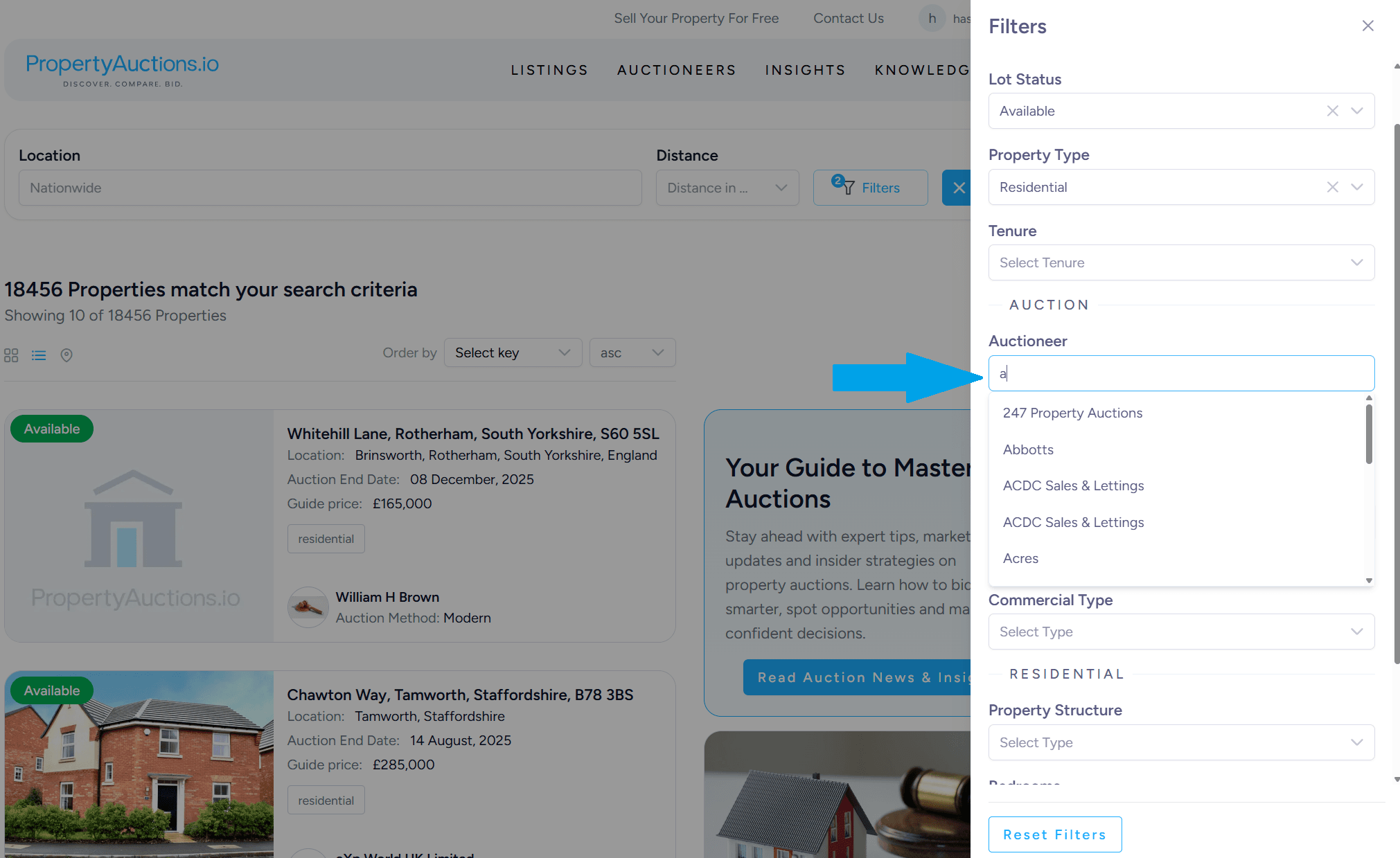
In the Auctioneer filter section, select a specific auctioneer if needed.
This is useful for users wishing to view properties associated with a particular auction house.
7. Filtering by Auction Date
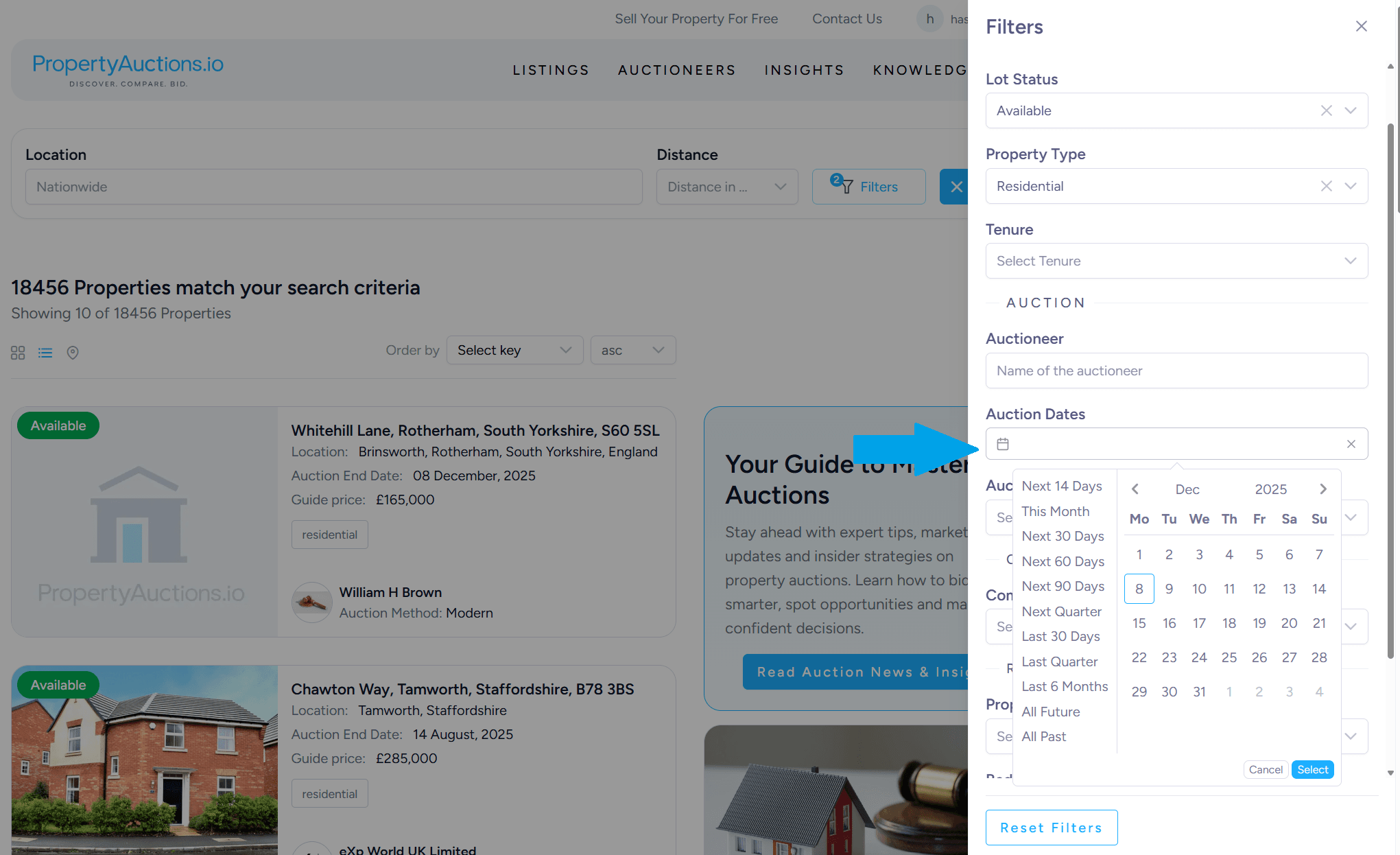
Open the Auction Dates filter.
Choose one or more dates from the calendar options.
Results will be restricted to properties listed for auction on the selected dates.
8. Selecting the Auction Method
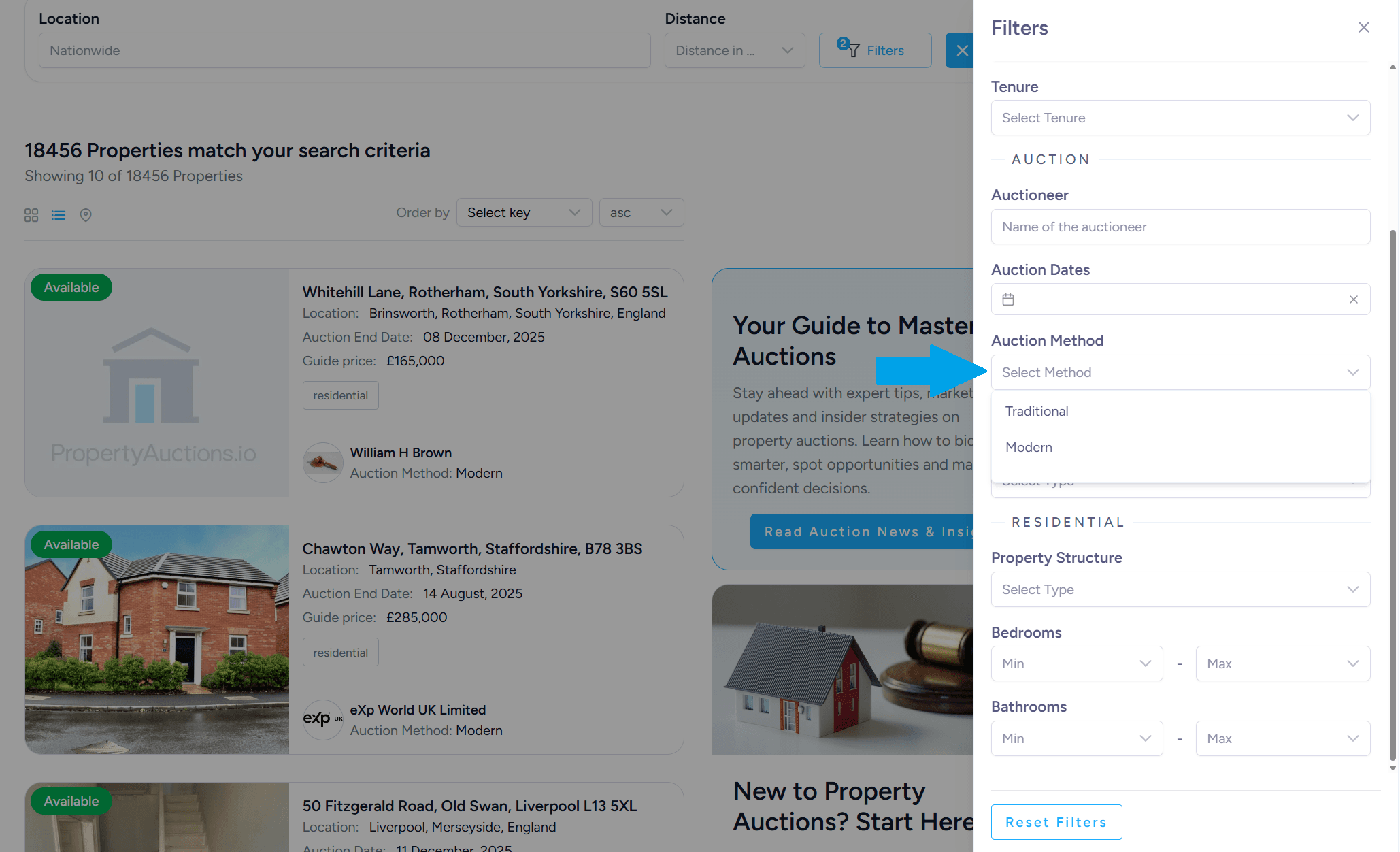
Navigate to the Auction Method filter.
Choose from available methods:
- Traditional
- Modern Method of Auction
9. Filtering Commercial Property Building Types
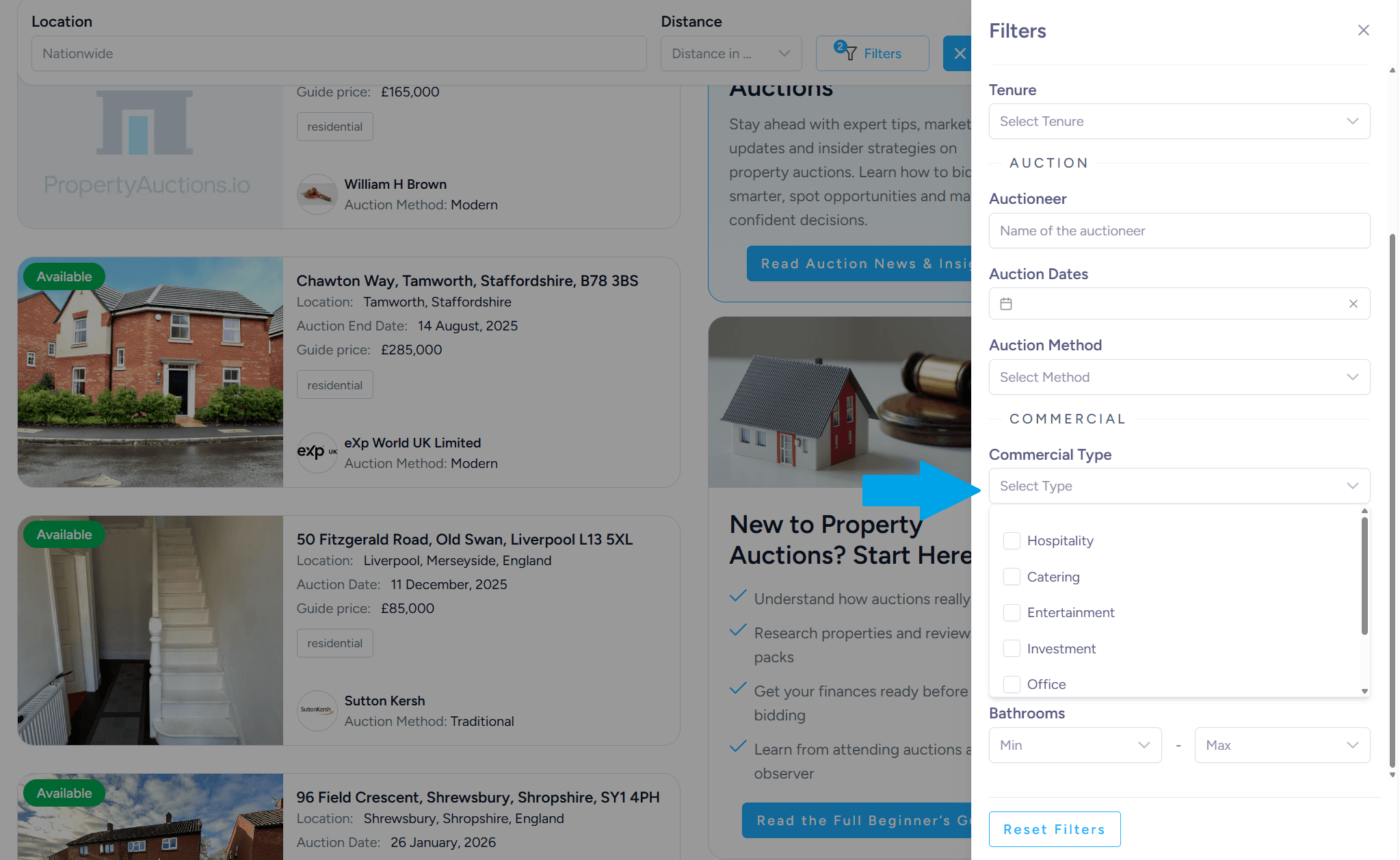
If viewing commercial properties, open the Commercial Property Type filter.
Select one or more building categories, such as:
- Hospitality
- Catering
- Entertainment
- Office
- Place of Worship
- and more
The property list will adjust accordingly.
10. Selecting the Property Structure
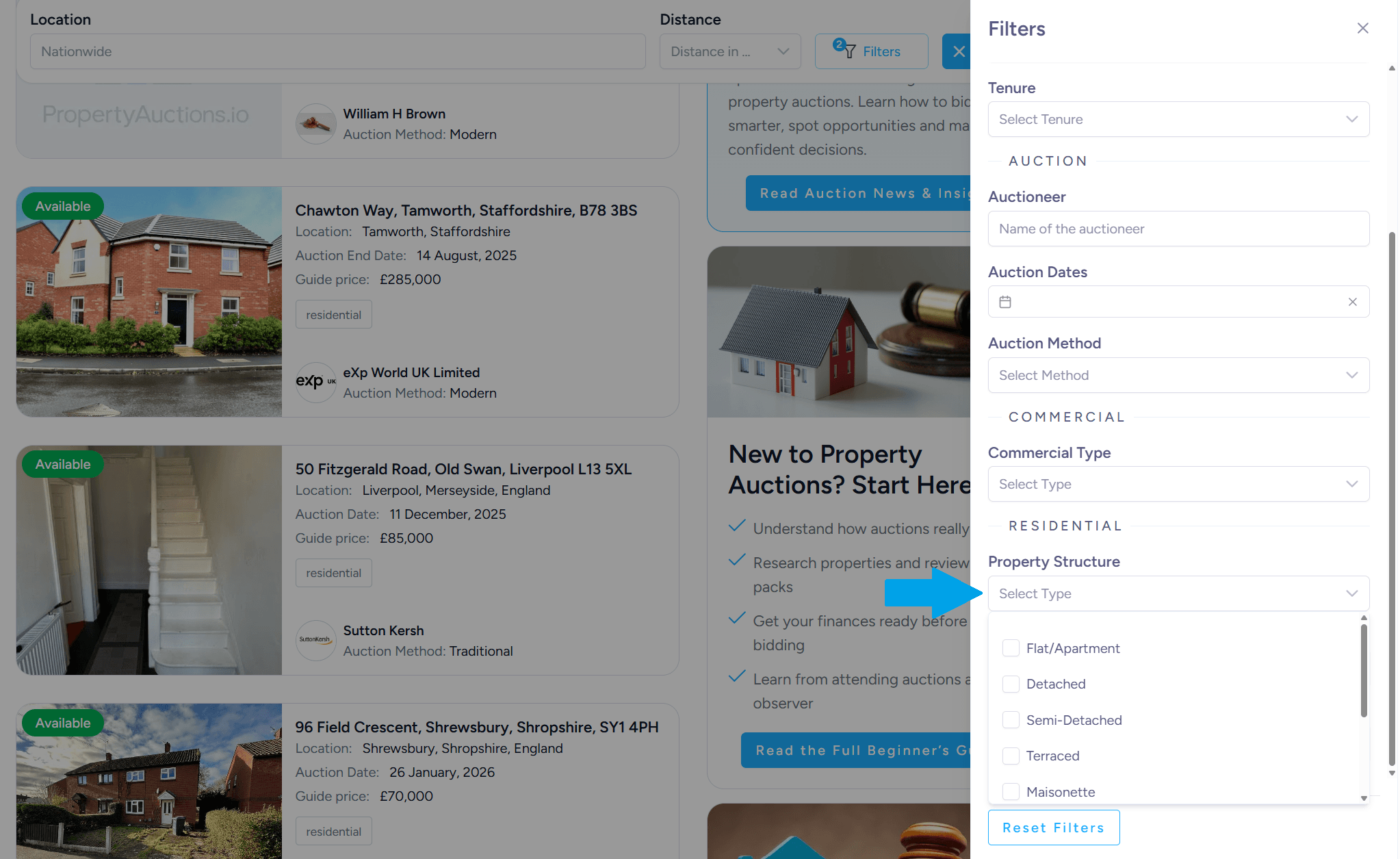
Locate the Property Structure filter.
Choose the appropriate structural category, including:
- Flat / Apartment
- Detached
- Semi-Detached
- Terraced
- and more
11. Setting Bedroom Range
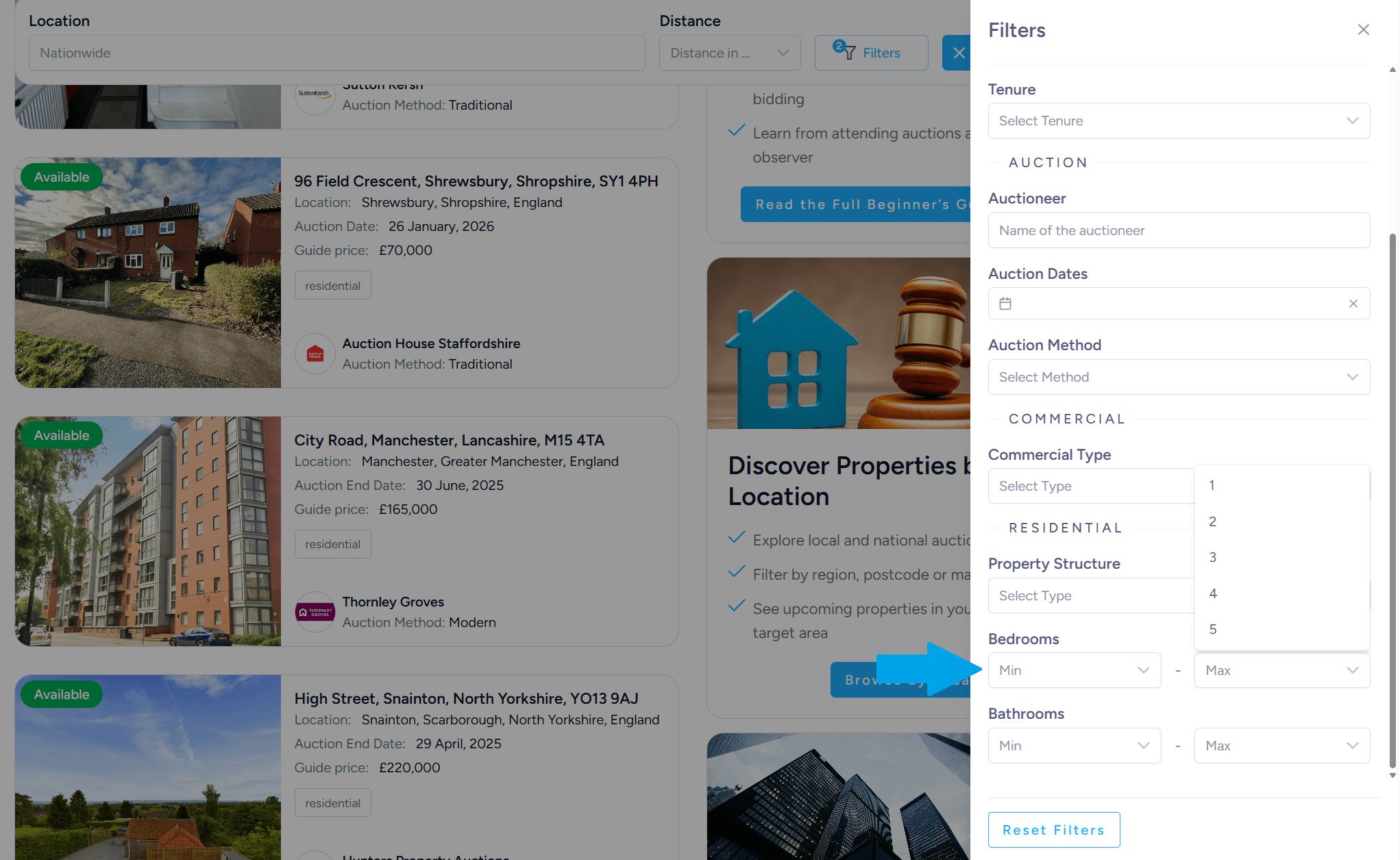
Open the Bedrooms section.
Select the minimum and maximum number of bedrooms.
12. Setting Bathroom Range
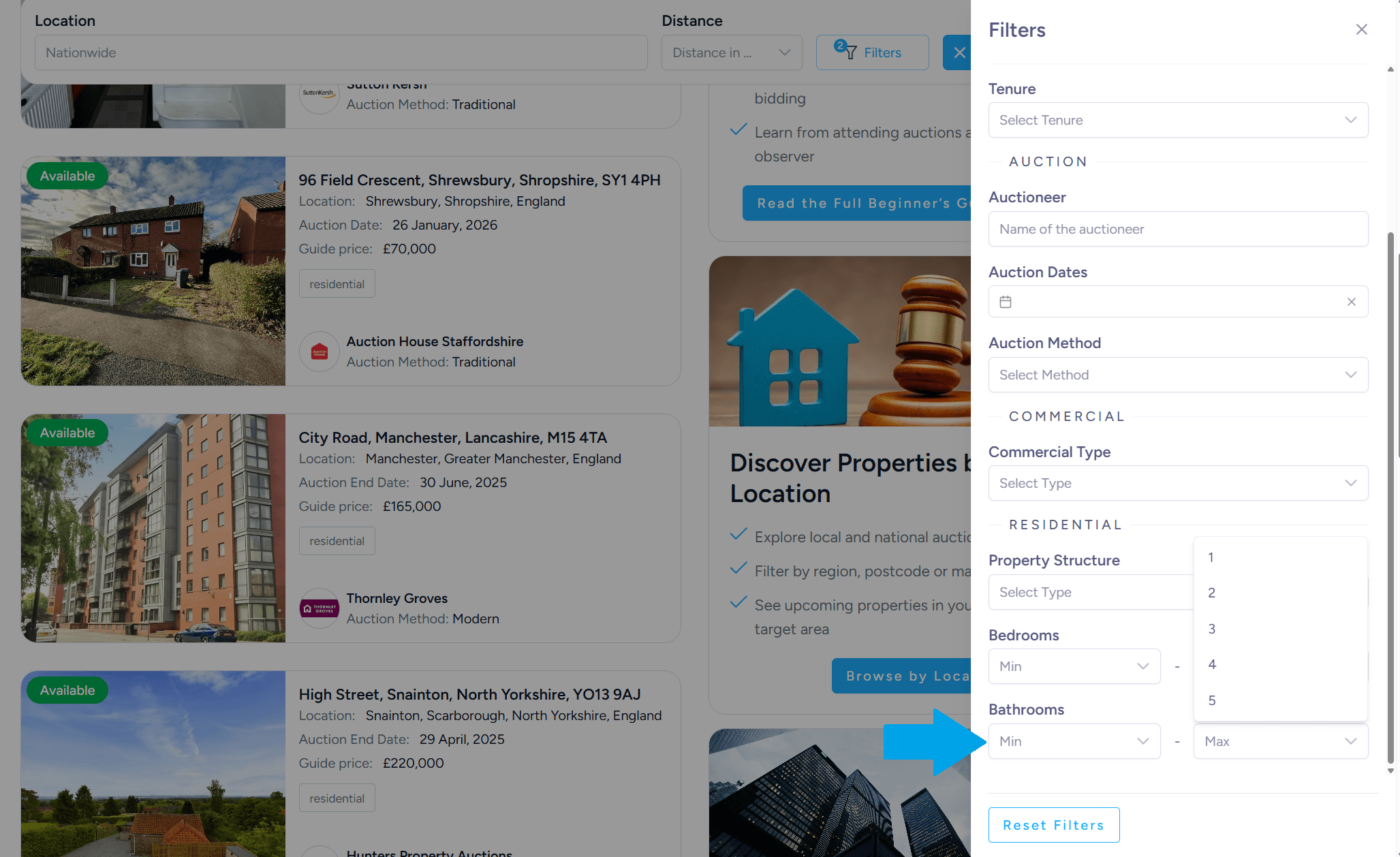
Open the Bathrooms filter.
Select the minimum and maximum number of bathrooms.
Results will be refined to match the chosen range.
13. Applying the Filters
Once all desired filters have been selected, simply click outside the filter menu or close the panel.
The system will automatically update and display all properties that meet the selected criteria.